
You take a photo from your phone, you want to print it right away, and the Canon printer refuses to show up in the list of available devices. The situation is common, but the cause varies depending on the printer model, the version of Android or iOS, and the type of Wi-Fi network used. Connecting a Canon printer to a mobile phone relies on a few prerequisites that are often overlooked, starting with the printer’s firmware itself.
Canon Firmware and Mobile Detection: The Point No One Checks First
When the phone can’t find the printer, we blame the Wi-Fi or the app. In most cases, the problem stems from the printer’s firmware. Canon explicitly recommends updating the firmware before any attempt to connect mobile. User feedback confirms that this single action often suffices to make the printer reappear on the network.
To check the firmware version, you go through the printer’s control panel (Settings menu, then System Info or Firmware Update depending on the PIXMA or i-SENSYS ranges). If the printer is already connected to Wi-Fi, the update starts directly. Otherwise, it needs to be temporarily connected to a computer via USB to download the firmware from the Canon website.
This point is even more critical with recent internet boxes. Some boxes have changed their management of Wi-Fi bands, and outdated firmware does not handle these changes properly. If you skip this step, you risk going in circles with unnecessary network resets.
For those who want a detailed step-by-step guide, you can refer to a tutorial that explains how to connect my Canon printer to my mobile phone with the appropriate manipulations for each range.
Canon PRINT App on Android and iPhone: What Has Changed Recently
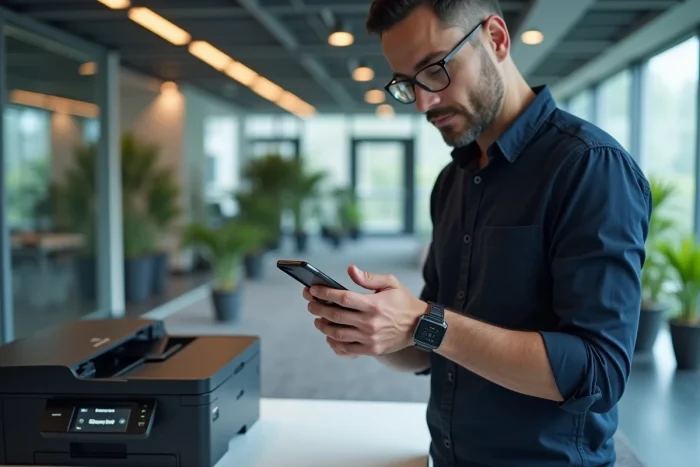
The Canon PRINT Inkjet/SELPHY app remains the most reliable way to connect a phone to a Canon printer. You download it from the Google Play Store or the App Store, then launch it with Wi-Fi enabled on the phone.
Android Path: Beware of the New Integrated Printing System
On recent Android phones (Android 13 and later), Google has reduced the visibility of older printing plugins like Canon Print Service. The system now favors integrated native printing and dedicated apps. Specifically, the “Print” menu in Android settings no longer necessarily highlights the Canon plugin.
You go directly through the Canon PRINT app:
- Open Canon PRINT, accept local network and file access permissions
- The app automatically scans the Wi-Fi network to detect the Canon printer
- If the printer does not appear, check that the phone and printer are on the same network (same band, preferably 2.4 GHz)
- Confirm the pairing, then start a test print from the app
Feedback varies on this point: some PIXMA models show up instantly, while others require restarting the printer after installing the app.
iPhone Path: AirPrint as a Shortcut
On iPhone, most recent Canon printers are AirPrint compatible. You do not need to install Canon PRINT to print, but the app remains useful for configuring the printer and managing network settings.
To print via AirPrint, simply open the document or photo, tap the share icon, then “Print”. The iPhone detects AirPrint printers present on the same Wi-Fi network. If the Canon printer does not appear, it is often a firmware issue (see previous section) or a separate network between the phone and the printer.
Direct Connection Without Wi-Fi: When to Use Canon’s Direct Mode
You don’t always have a Wi-Fi network available. Canon offers a direct connection mode (sometimes called “Wireless Direct” or “Wi-Fi Direct”) that creates a temporary access point directly from the printer. The phone connects to it just like it would to any Wi-Fi network.
To activate it, go through the printer’s network menu and select “Direct Connection” or “Enable Access Point Mode”. The printer generates a network name (SSID) and a password visible on its screen or printable via a configuration sheet.
This mode is convenient when traveling or in a location without an internet box. However, it cuts off the phone’s internet access as long as you are connected to the printer, since the phone leaves the usual Wi-Fi network. You print, then reconnect to the regular network.
Quick Canon Diagnosis: Troubleshooting Phone-Printer Connection Issues
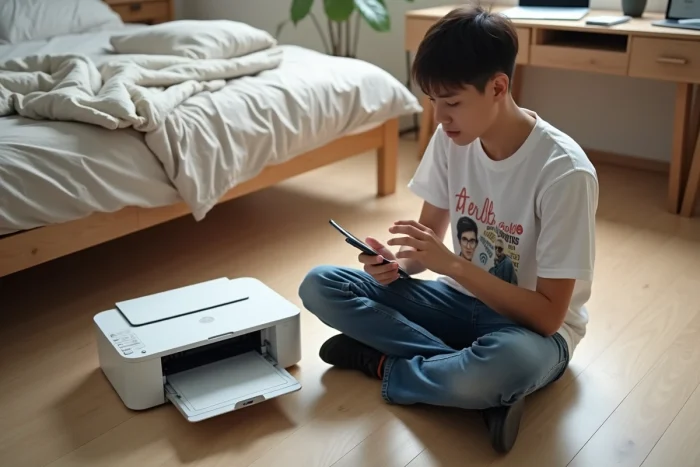
When the connection fails despite all the steps, follow a precise verification order before resetting everything:
- Check that the printer and phone are using the same Wi-Fi band (Canon printers generally operate on the 2.4 GHz band, not on 5 GHz)
- Restart the printer, the phone, and the internet box in that order
- Ensure that the printer’s firmware is up to date
- Uninstall and then reinstall the Canon PRINT app
- As a last resort, reset the printer’s network settings via the dedicated menu, then restart the pairing process
The network reset is the most drastic action. It erases all saved Wi-Fi settings, requiring reconfiguration of the printer for all devices in the home or office. Only attempt it after exhausting other options.
One last detail often overlooked: some internet boxes isolate connected devices from each other by default (the “client isolation” or “AP isolation” feature). If this option is enabled, the phone sees the Wi-Fi network but not the printer. You disable this function in the box’s administration interface, and detection returns to normal.